by Tina Gasperson
Computer hard drive capacity just keeps going up and up as our storage needs increase, so we don’t feel the need to be as choosy as we used to about installing programs. After all, there’s plenty of room. Problems can crop up, however, when an application uses too many resources and slows the computer down – and as many of us discover, there really is a limit to how many things we can have on the hard drive before running out of space. If buying a new hard drive is not an option, it may be time to pare down the number of applications installed on your computer. Here’s how.
Simply locating the installation on the hard drive and deleting it can leave stray files and doesn’t undo the changes made to your registry at the time of installation. In other words, your computer still “thinks” the program is installed. The control panel is the best way to access your installed programs and if necessary, to uninstall them correctly. Click the “start” button in the lower left corner of your desktop, and then click on Control Panel. Find “Add or Remove Programs” and click it. Give Windows a moment or two to populate the list of installed applications. If you have a large number of applications it may take as long as 60-120 seconds to pull this list up.
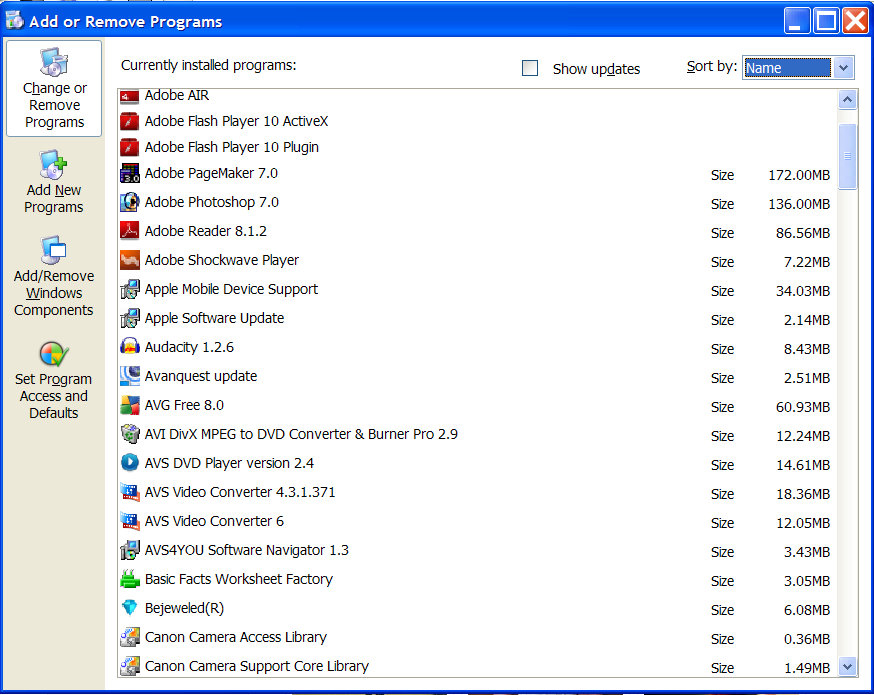
Add and remove programs
Tina Gasperson (tinahdee@gmail.com), affectionately known as Computer Lady by her family, has been writing about IT, home computing, and the Internet for more than a decade.
I read the article about how to remove programs, but my problem is that they are never named what I think they are .. I am concerned that I may delete a program that I want because no matter what program I look at the computer tells me that it is rarely or never used .. even the word processor!
Comment by Susan — March 16, 2009 @ 9:40 pm
I agree with Susan’s comment. I have several programs installed that I know are utilized regularly, but the A/R Programs window will show otherwise. There is also the occasional application (re. Norton/Symantec) that can not be, or is incompletely uninstalled using this function, and as for keeping the registry “clean”, it just doesn’t do it!
Comment by IMSA12 — March 17, 2009 @ 11:43 am
This was completely useless to me. I already did this step and the program is still on my computer and keeps popping up no matter what I do.I need a real solution, most beginners know how to do this step.,
Comment by Nancy — March 25, 2009 @ 6:15 pm
Nancy,
It sounds like you have a program that doesn’t want to be removed. Try AdAware or SpyBot Search And Destroy (both free) to remove it.
Comment by admin — March 25, 2009 @ 6:16 pm
Add/remove programs does not delete ITunes or QuickTime. The ruddy things simply won’t die!
Comment by Fitz — April 10, 2009 @ 3:31 am
I use a freeware program ” Revo Uninstall” It works like a charm. Has 4 or 5 levels of removals, uses the programs uninstall first, then it scans for any left over files to remove. The best and fastest one I have ever used.
Comment by Gary Powell — April 22, 2009 @ 10:16 pm
Told to locate a program called “GreyGray” on my List of Programs; found it and removed it… however, I find that in using Google… this AdWare still appears at the bottom of a page… any advice… I use AdBlock on Google… it seems to work… but not on ‘GreyGray’.
Comment by Ronald Malloy — December 22, 2013 @ 9:59 am