by David Hakala
Internet Explorer is full of features, but those features can slow down your Web surfing. If speed is more important to you than amenities, here are five IE tweaks that will make you happy.
1. Increase the number of simultaneous connections. If you have a multi-megabit/second broadband connection, a lot of its bandwidth is wasted by downloading a maximum of two Web page components simultaneously; that is IE 7’s default value for “maximum number of connections.” Most Web sites don’t serve files faster than 50 to 100 Kbps per connection. You can get faster page loading by increasing the maximum number of connections to 10 or more; that’s 500 to 1,000 Kbps total throughput. To increase the maximum number of simultaneous connections,
Click Start, then Run, and enter regedit.
Navigate to the following registry entry:
HKEY_CURRENT_USER\Software\Microsoft\Windows\CurrentVersion\Internet Settings
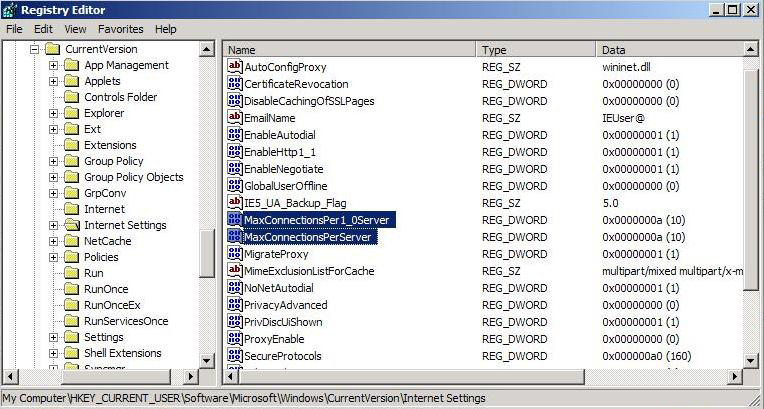
Internet Explorer Maximum Connections
MaxConnectionsPer1_0Server
MaxConnectionsPerServer
2. Turn off the phishing filter. This feature sends URLs embedded in pages you are viewing to Microsoft for inspection. If Microsoft determines there is a risk of a phishing exploit behind a URL (never mind how), it sends you a warning pop-up. You have to wait while that round-trip is made, slowing down your browsing. It is faster to rely on a desktop anti-malware app such as Avast! Antivirus. To disable IE 7’s phishing filter,
In IE, click Tools, then Phishing Filter, then “Turn On Automatic Website Checking.”
Click the “turn off” radio button on the pop-up window.
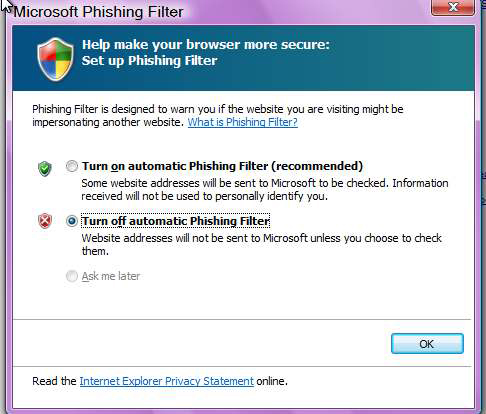
Internet Explorer phishing off
Click Tools, then Internet Options, then Content, then Feeds, then Settings.
Uncheck everything on the Settings screen.
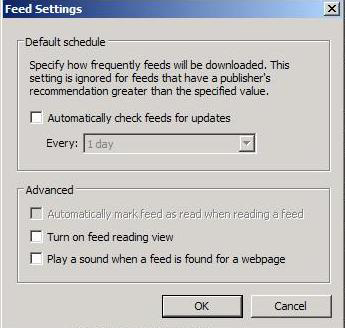
Turn off scheduled RSS feeds
Cick Tools, then Advanced.
Scroll down and uncheck the box labeled, “Always use ClearType for HTML.”
5. Disable the SSVHelper Class plugin. This mysterious thing seems to be a non-essential part of the Java Plugin. Its absence has not been reported to make any difference in the running of Java applets. To disable the SSVHelper Class plugin,
Click Tools, Manage Add-ons, Enable or Disable Add-ons.
Select the SSVHelper Class line, click Disable, and then OK.
David Hakala has perpetrated technology tutorials since 1988 in addition to committing tech journalism, documentation, Web sites, marketing collateral, and profitable prose in general. His complete rap sheet can be seen at http://www.linkedin.com/in/dhakala
how to do this in vista
Comment by Allan Davis — April 20, 2009 @ 2:31 pm
Thanks, it was so helpful………
Comment by Web Hosting — July 11, 2009 @ 2:14 pm
very helpful… thanks for sharing
Comment by Pc tricks — May 20, 2011 @ 9:35 am
Rule #4 – Do Stabilizing Movements from the Pushup Position.
For a speedy withdrawal of fat, avoid all “white” carbohydrates such as bread, pasta, cereal and potatoes.
That is why you only need to follow the above guidelines 90% of the time, which allows for 4-5 cheat meals per week.
Comment by factor quema grasa pdf — October 16, 2013 @ 11:21 am
You should also follow a healthy lifestyle:
If you make a relatively small change in your whole lifestyle then there will be a big impact on the body and your health.
Now you already know what can affect this fat loss, but maybe yourself not sure whether you can do this or not.
” If this happens, weight loss will slow down and it will become more and more difficult to maintain a healthy weight.
Comment by muscle maximizer pdf download — October 21, 2013 @ 5:07 pm
The first line of attack is eating a high protein breakfast.
I thought this would turn me into a super-lean machine. ” If this happens, weight loss will slow down and it will become more and more difficult to maintain a healthy weight.
Comment by sistema de seducción subliminal pdf — October 22, 2013 @ 4:03 pm
Good day! This post couldn’t be written any better!
Reading this post reminds me of my good old room mate!
He always kept chatting about this. I will forward this page to him.
Pretty sure he will have a good read. Thanks for sharing!
Comment by ganar dinero mientras duermes gratis — October 25, 2013 @ 8:47 am
However, by early next morning, in most cases you will notice that your weight has considerably dropped compared to where it was the previous night.
If the your body fat is above 25% but below 30% (Women) or above 20% but below 25% ( Men) then you are overweight, you
are carrying more fat around than you need or that is healthy for you and it probably means you are eating
too much of the wrong foods. But let me explain the whole concept of this diet program.
Comment by turbulence training pdf — November 4, 2013 @ 1:38 pm
On top of this, unsaturated fats provide a slow release of energy, so
unlike high sugar foods and refined carbohydrates, will keep you
satiated for longer. Women should take half a serving, and
men should take one serving, mixed in the recommended amounts of water.
But let me explain the whole concept of this diet program.
Comment by 4 cycle fat loss solution download free — November 7, 2013 @ 11:14 pm
Your calorie intake goes hand in hand with your body weight.
Obesity is a health hazard, but there are ways to work with
it, without compromising your health further.
Of course, you should always consult your doctor for a thorough evaluation and prescription.
Comment by ultimate herpes protocol free — December 11, 2013 @ 5:50 pm
On top of this, unsaturated fats provide a slow release of energy, so unlike high
sugar foods and refined carbohydrates, will keep you satiated for longer.
Women should take half a serving, and men should take one serving, mixed in the recommended amounts of water.
Using a appetite suppressant will help to prevent hunger,
which could result in you eating more cheat meals than you should.
Comment by kidney disease solution free pdf — December 14, 2013 @ 6:31 pm
I got this site from my buddy who told me about this web
site and at the moment this time I am visiting this web page
and reading very informative articles or reviews here.
Comment by Alejandrina — October 17, 2014 @ 5:00 am